
Free Video Translator: How to Translate Your Videos Online

If you've got a video that needs subtitles in another language, you don't need editing software, a translator on payroll, or a steep learning curve. You need four steps and a few minutes. This guide walks through exactly how to do that — plus how to decide whether subtitles or dubbing is the right call, how to handle YouTube and TikTok clips specifically, and what "AI accurate" actually means in practice.
📋 Quick answer: Yes, free video translators exist. They run in your browser, don't require downloads, and can turn a video's spoken audio into translated, editable subtitles in minutes. Here's exactly how that works. 👇
Table of Contents
- Is There a Free Video Translator — Here's How It Works
- How to Translate a Video Online for Free, Step by Step
- Subtitles or Dubbing: Which Translation Do You Actually Need
- Translating Videos From YouTube, TikTok, and Other Platforms
- Translating Between Specific Languages
- How Accurate Is AI Video Translation
- FAQs
- Start Translating Your Video for Free
Is There a Free Video Translator — Here's How It Works
Short answer: yes. 🎉 You don't need to buy software or sign up for a trial that quietly turns into a subscription. A free, browser-based ai video translator works the same way as any other web app — you open the page, upload your file, and the processing happens on the other end.
Here's what's actually happening under the hood, in plain terms:
- Speech recognition listens to the audio track and converts it into text (a transcript) in the video's original language.
- Machine translation converts that transcript into your target language.
- Timing/sync lines the translated text back up with the video, so subtitles appear exactly when each line is spoken.
- Export packages the result as a subtitle file (like SRT) burned into or attached to your video.
That's the whole pipeline — no manual transcription, no sending a file to a freelancer and waiting two days.
At a glance:
| What you're wondering | Answer |
|---|---|
| Does it cost anything? | No — free to use in your browser |
| Do I need to install anything? | No — works entirely online |
| What formats can I upload? | MP4, MOV, WebM, OGG, FLV, MPEG, MPG |
| Is there a length limit? | Yes, typically up to 3 minutes per video on the free tier |
| Can I edit the subtitles before exporting? | Yes — every line is editable |
| How many languages are supported? | 30+ of the world's most widely spoken languages |
How to Translate a Video Online for Free, Step by Step
Here's exactly how to translate a video, from upload to download. No prior experience needed. 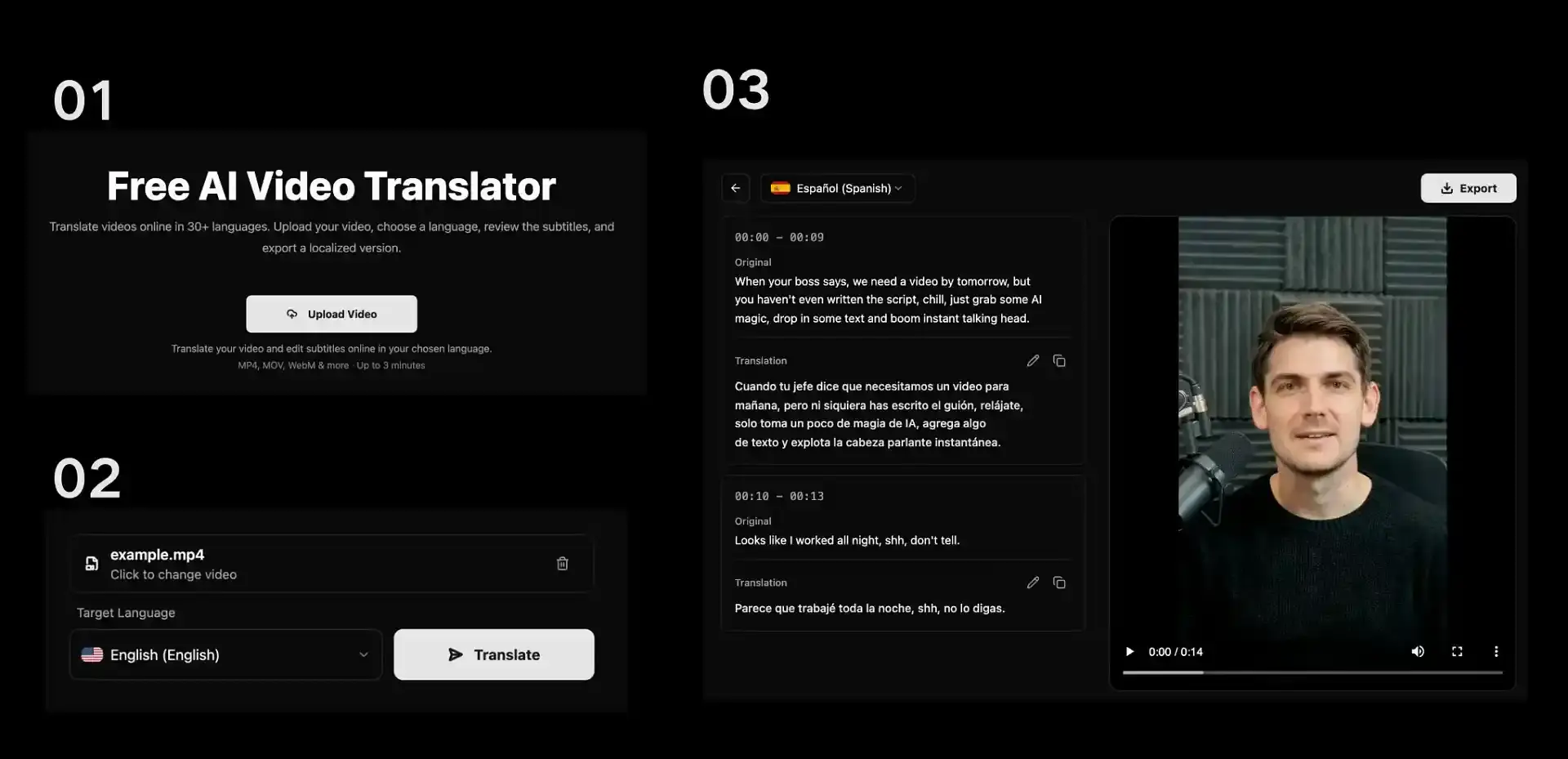
Step 1: Upload your video (or paste a link)
Open the tool and select a video from your device. Most free translators accept common formats like MP4, MOV, and WebM, with a length cap (often a few minutes) on the free tier — so this works best for short clips, trailers, or social videos rather than a full-length film.
Step 2: Choose your target language
Pick the language you want the subtitles translated into from a dropdown menu. This is also where you'd double-check that your target language is supported before you commit to uploading a longer file.
Step 3: Review and edit the translated subtitles
This is the step people skip and shouldn't. 🧐 Once translation finishes, you'll see the subtitles laid out next to the video, broken into timed lines. Read through them — automated translation is good, not psychic, and names, slang, or industry-specific terms are the most common spots where a quick manual edit improves the result significantly. 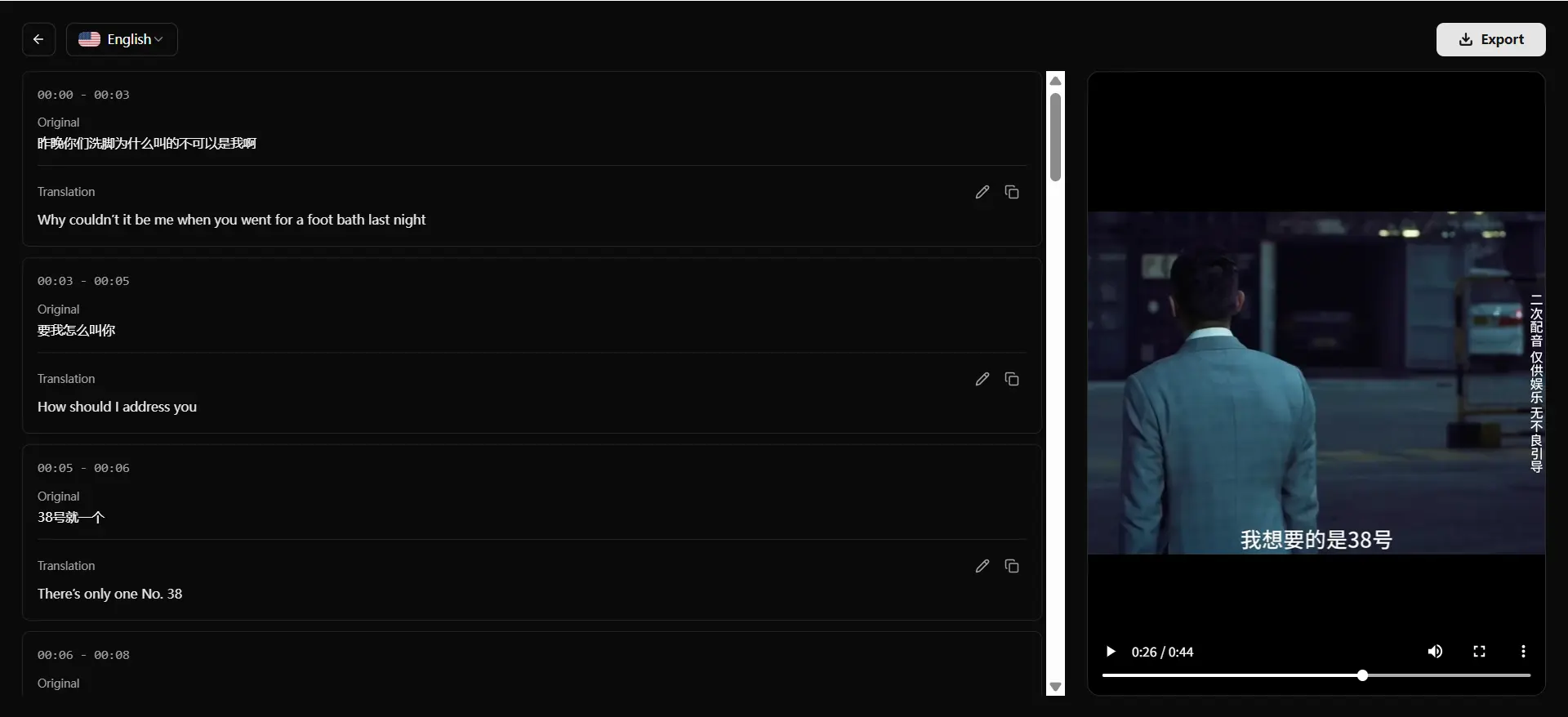
Step 4: Export your translated video
Once you're happy with the text, export the finished file. You'll typically get a video with the translated subtitles either burned in or attached as a separate track, ready to upload wherever your audience is watching.
That's the entire workflow — no rendering software, no plugins, no waiting on a quote from a translation agency.
Subtitles or Dubbing: Which Translation Do You Actually Need
"Translate a video" can mean two very different things, and picking the wrong one wastes time. Here's the actual difference:
| Type | What it does | Best for | Turnaround |
|---|---|---|---|
| Subtitle translation | Displays translated text on screen; original audio stays untouched | Social clips, tutorials, YouTube videos, accessibility | Minutes |
| AI dubbing / voice cloning | Replaces the spoken audio with a synthetic voice in the new language, often synced to lip movement | Corporate training, avatar-style content, full localization | Longer processing, more setup |
| Human voiceover | A real voice actor re-records the script in the target language | High-budget commercials, films, brand campaigns | Days to weeks |
If your goal is simply to make a video understandable to a non-native audience — which covers the vast majority of social and educational content — subtitle translation gets you there fastest and free. It also happens to be the better accessibility option for viewers watching on mute, which is most mobile viewers by default.
Dubbing and voice cloning solve a different problem: making the video feel like it was originally filmed in that language. That's genuinely useful for certain use cases, but it adds processing time and complexity that most short-form or how-to content doesn't need. Know which problem you're actually solving before you pick a tool.
Translating Videos From YouTube, TikTok, and Other Platforms
The core workflow from section 2 stays the same everywhere — upload, translate, review, export — but each platform has its own quirks worth knowing.
How to translate YouTube videos
You've got two paths here:
- You own the video: Download your file, then run it through a video translator like any other clip. You get editable subtitles you can review and fix — no relying on YouTube's automated system.
- You're watching someone else's video: YouTube has built-in auto-translate (Settings → Subtitles → Auto-translate). It's convenient, but YouTube itself flags that automatic captions can misrepresent speech due to accents, background noise, or overlapping speakers. The same problem carries through to the translation — bad captions make bad subtitles.
If you're a creator translating your own YouTube content for a non-English audience, running the file through a dedicated translator first — and reviewing the output — gets more reliable results than relying purely on auto-translate.
TikTok and Instagram videos
TikTok and Instagram Reels are usually short enough to translate directly. Export the clip from the app, upload it, translate, and re-upload the localized version as a separate post targeting that language's audience — this is exactly the strategy that's helped creators multiply a single video into several regional versions without reshooting anything.
On iPhone or mobile
Because a browser-based translator runs online rather than as installed software, it works the same way on a phone as it does on a desktop — open the site in your mobile browser, upload the video from your camera roll, and follow the same four steps. 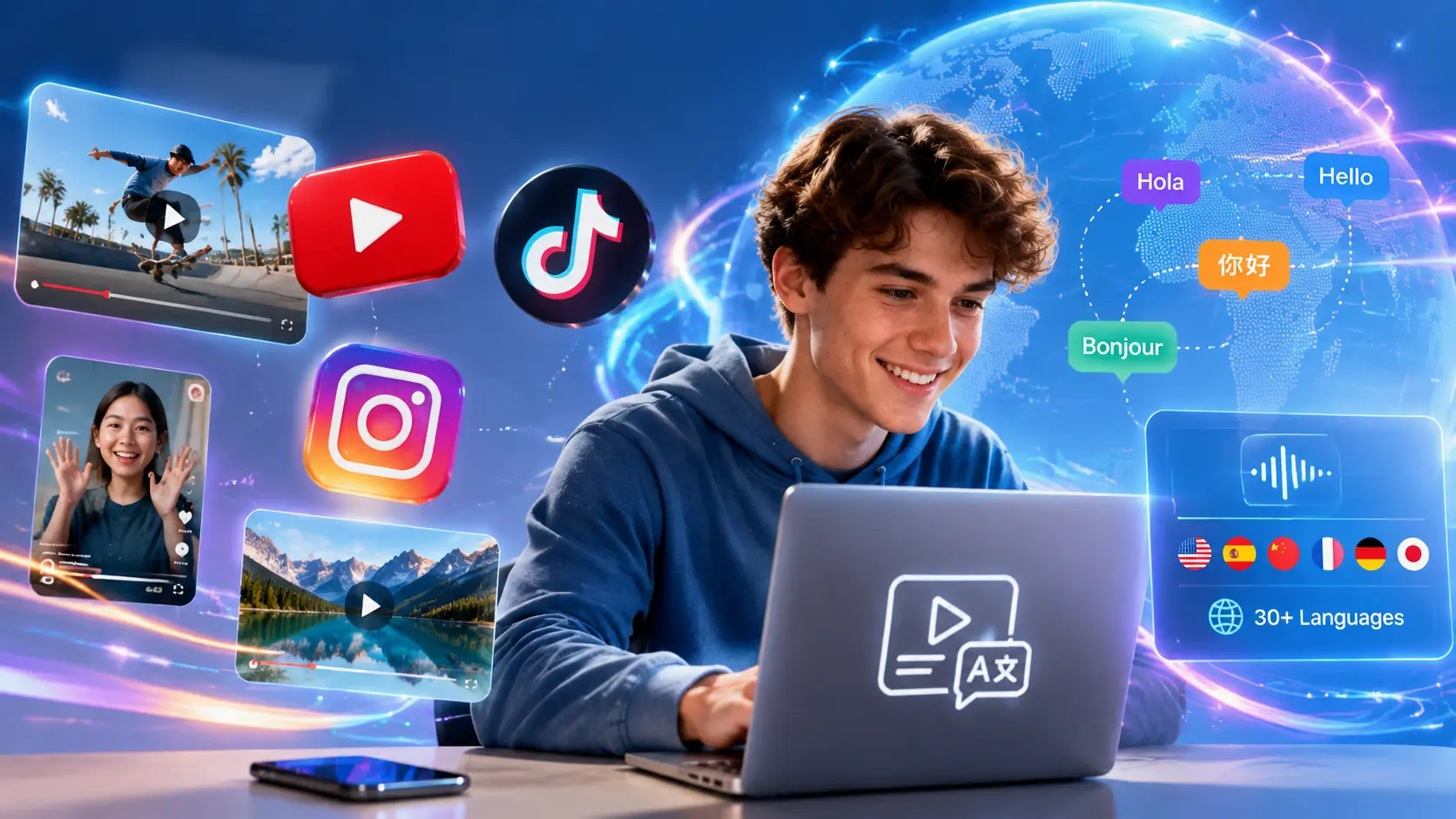
Translating Between Specific Languages
The most common real-world request isn't "translate my video into every language" — it's a specific pair, most often Spanish to English (creators localizing Latin American content for English-speaking audiences, or the reverse). Others that come up constantly: Japanese to English, German to English, and English to Hindi.
The process is identical regardless of the pair — upload, select your target language, review, export — so there's no special trick for any particular combination. What actually matters is whether your specific language is supported.
A free tool that covers 30+ languages will typically include the ones covering the largest share of global speakers — English, Mandarin, Hindi, Spanish, French, Arabic, Portuguese, and Russian consistently rank among the world's most spoken languages, together accounting for billions of speakers. For the vast majority of creators targeting global traffic — Spanish, Hindi, Japanese, Arabic, and similar high-reach languages — these 30+ options cover nearly all real-world searches, without spreading focus across low-traffic dialects that most viewers never type into Google. If your audience speaks one of the major world languages, you're covered. If you need a less common regional dialect, that's where larger platforms advertising 100+ languages have a real edge — worth checking the supported list before you commit to a workflow.
How Accurate Is AI Video Translation
Good, with caveats worth knowing before you hit export. 🎯
Where it performs well:
- Clear, single-speaker audio
- Standard vocabulary and everyday speech
- Common language pairs with lots of training data (Spanish, English, French, etc.)
Where accuracy drops:
- Heavy background noise or music overlapping dialogue
- Strong accents or fast, overlapping speech from multiple speakers
- Idioms, slang, or industry-specific jargon that doesn't translate literally
- Homonyms and context-dependent phrasing that depend on tone
This isn't unique to any one tool — it's a known limitation across automated speech recognition generally. Even YouTube's own help documentation acknowledges that automatic captions "might misrepresent the spoken content due to mispronunciations, accents, dialects, or background noise," and recommends reviewing before publishing. The same logic applies to any AI-translated subtitles: treat the first pass as a strong draft, not a final copy. That's exactly why Step 3 — reviewing and editing — isn't optional if accuracy matters for your audience.
FAQs
Is there a really free video translator, or are there hidden limits
Yes, AIVideoTranslator is genuinely free to use right in your browser without hidden subscription fees or locked exports.
Can Google Translate a video
Not directly as a single upload-and-translate action. Google Translate handles text, and its camera/conversation modes handle live speech, but it isn't built to take a video file, transcribe the audio, translate it, and hand back timed subtitles in one workflow the way a dedicated video translator does.
Can Loom translate a video with AI
Loom is primarily a screen-recording and async video messaging tool, not a translation tool. Some versions include AI-generated transcripts, but built-in multi-language subtitle translation isn't its core function — you'd typically export the video and run it through a dedicated translator instead.
Can Descript translate a video
Descript is a text-based video editor — you cut the transcript, the video follows. Translation features show up in some plans, but the tool is built for full editing workflows, not a quick, free upload-and-translate.
How do I translate a YouTube video to English
Download your video, upload it to a video translator, choose English, and export the translated subtitles after a quick review. If the video is someone else's, YouTube's built-in auto-translate (Settings → Subtitles → Auto-translate) is the quicker route — accuracy caveats in section 6.
Do I need to download software to translate a video
No. Browser-based translators run entirely online — you upload a file, the processing happens on the server side, and you download the finished result. Nothing gets installed on your device.
Does this tool support less common languages
Coverage focuses on the world's most widely spoken languages rather than every regional dialect. If your target audience speaks a major language — Spanish, Hindi, Japanese, German, Arabic, and similar — you're covered. For a less common regional language, it's worth checking the supported list first, since narrower coverage is the trade-off for keeping the tool fast and free.
Start Translating Your Video for Free
Translating a video doesn't have to mean hiring anyone or learning new software — upload, pick a language, review the subtitles, export. If you've got a clip ready to go, you can translate your video for free right now and have localized subtitles in a few minutes.